

Getting started and sign-in
What this screen is for
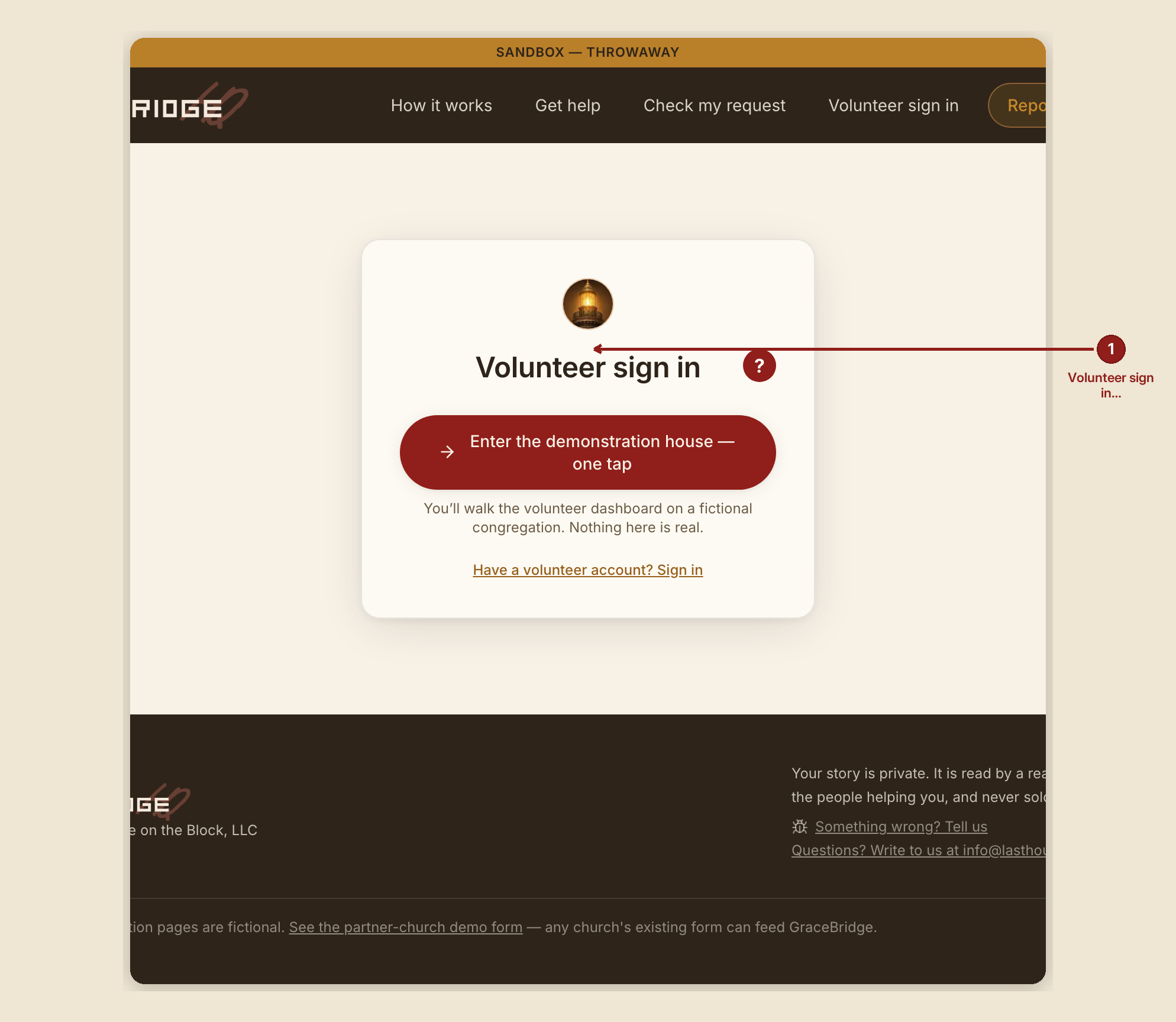
This is the one door into GraceBridge for anyone who works cases: a volunteer, a staff caseworker, a pastor, a consultant, or the founder. Nobody creates their own account here. An account is opened for you, and this page is where you sign into it.
What you see, in the screen's own labels
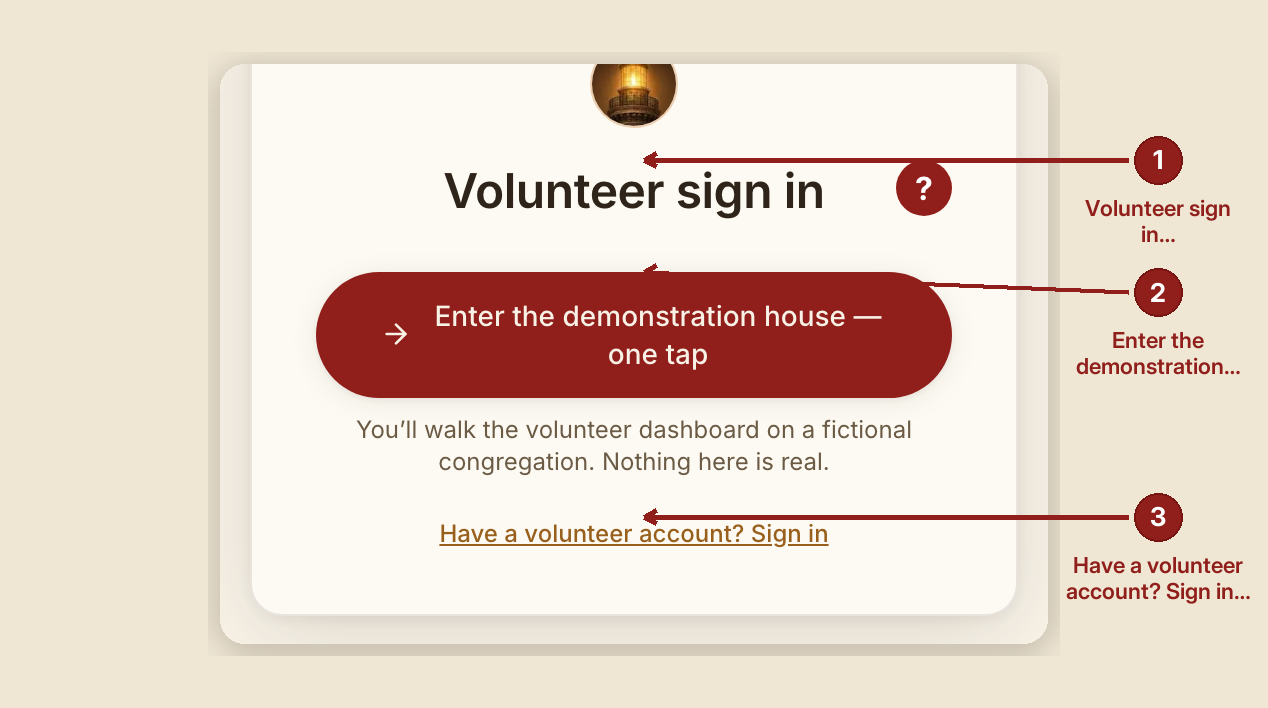
- "Volunteer sign in" — the heading, whoever your role actually is.
- "Enter the demonstration house — one tap" — on a demonstration house, this is now the card's main button, above the email field. Tapping it walks you into the volunteer dashboard on a fictional congregation; the real sign-in form is still there, behind "Have a volunteer account? Sign in." On a real house neither the button nor that disclosure appears at all — the form below is simply the first thing on the card.
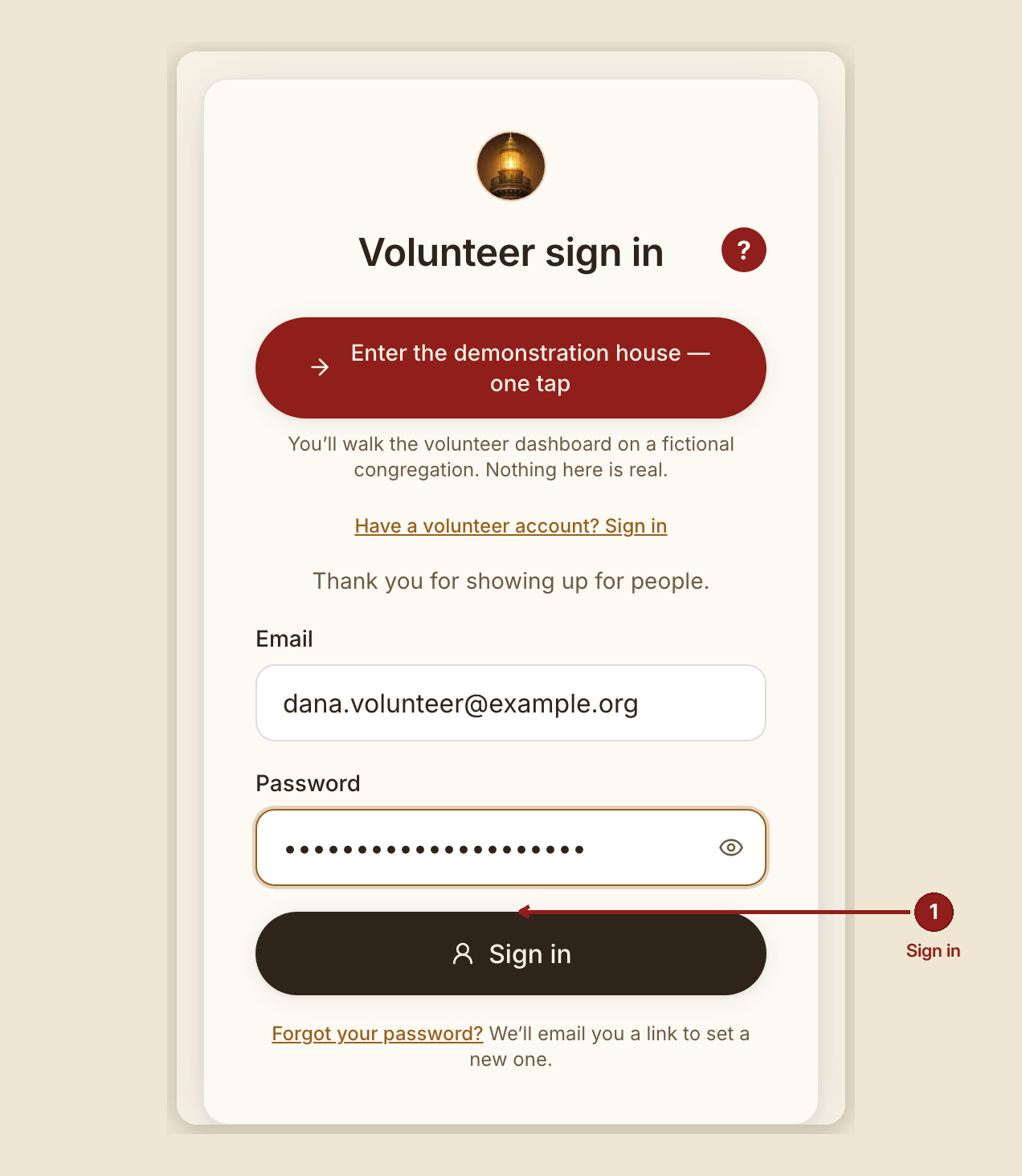
- "Thank you for showing up for people." — the line under the heading (on a real house), or under the disclosure once it's opened (on a demo house).
- Email and Password fields, with an eye icon at the end of the password box to show or hide what you typed.
- "Sign in" — the button. It stays disabled until both fields have something in them.
- "Forgot your password?" — a link under the card, with "We'll email you a link to set a new one." underneath it.
What to do
- Go to
/dashboard/login, or click the sign-in link in the header of any page. - Type the email and password you were given.
- Click Sign in.
- You land on Casework — your morning view. Your session lasts about eight hours before you need to sign in again.
If you don't have an account yet: there is no sign-up button on this page, on purpose. Ask the founder (Steven) to open one for you. Give him your name and email; he sets a starting password and hands it to you.
If you've lost your password: there is no self-service "forgot password" flow that emails you a reset link and quietly recovers your account without anyone knowing — recovery here is a person, not an inbox. Ask the founder to reset it, or use the "Forgot your password?" link, which walks you through:
- `/dashboard/reset-request` — heading "Reset your password". Enter the email you sign in with and click "Email me a reset link". The confirmation is worded the same way whether or not that address has an account — that's deliberate, so nobody can use this page to check which emails have accounts on the house.
- The link in that email opens `/dashboard/reset` — heading "Set a new password". Pick a new password and you're back in.
- Every dead-link state on that page ends with the same fallback: the founder can reset your password by hand — call or text him and you're back in within minutes.
Changing your password once you're signed in: go to "Your account" (under Casework, next to Reports), find "Change your password", and fill in your current password, a new one (10+ characters — a short phrase works well), and the new one again. Click "Change password."
What NOT to do
- Don't share your account. Every note you write signs itself with your name because you're signed in as yourself. Signing in with someone else's account means the next volunteer reads the wrong name on the notes you leave.
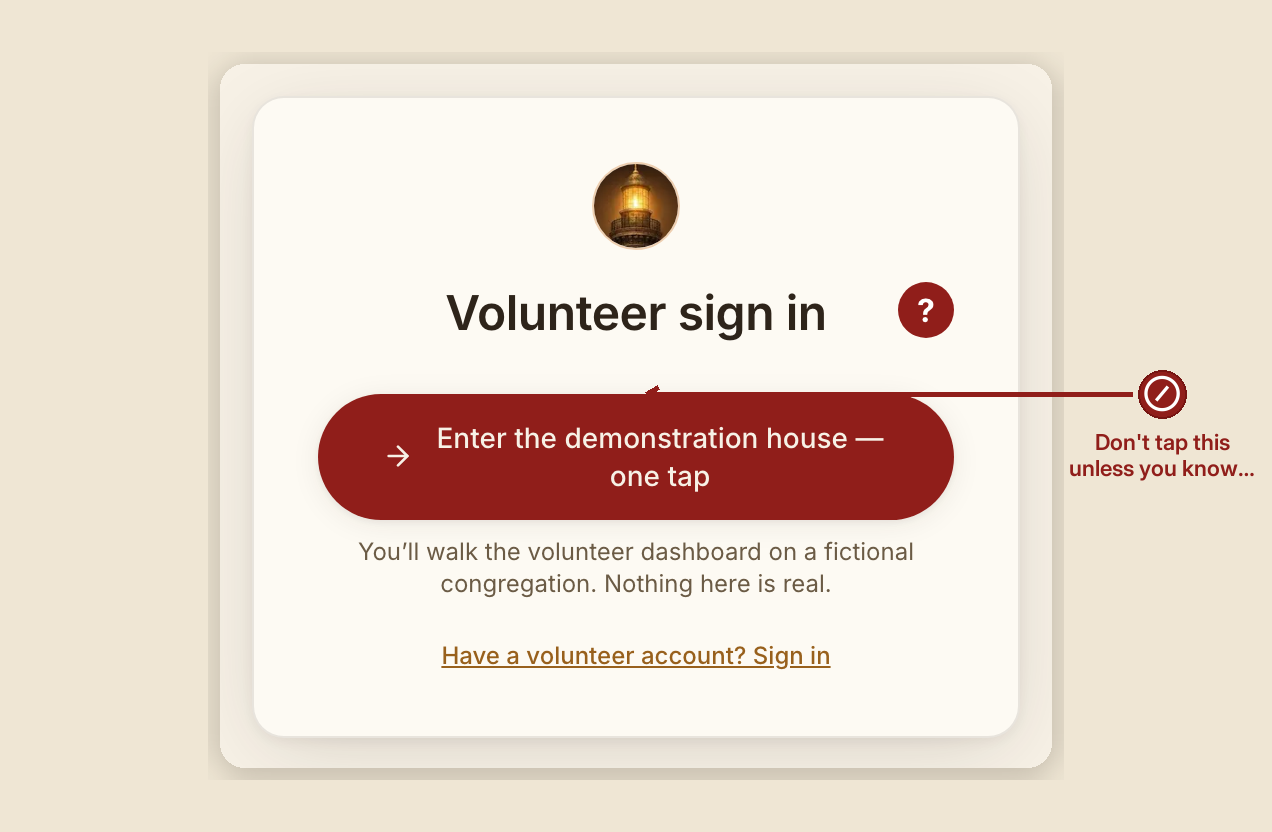
- Don't tap "Enter the demonstration house" unless you know you're in a demonstration session. It opens a shielded view that hides real people's cases — useful for a walkthrough, useless (and confusing) for real work.
- Don't try to guess your way past a locked-out or expired account. If your access has an end date and it's passed, ask the founder to extend it rather than trying different passwords.
When something goes wrong
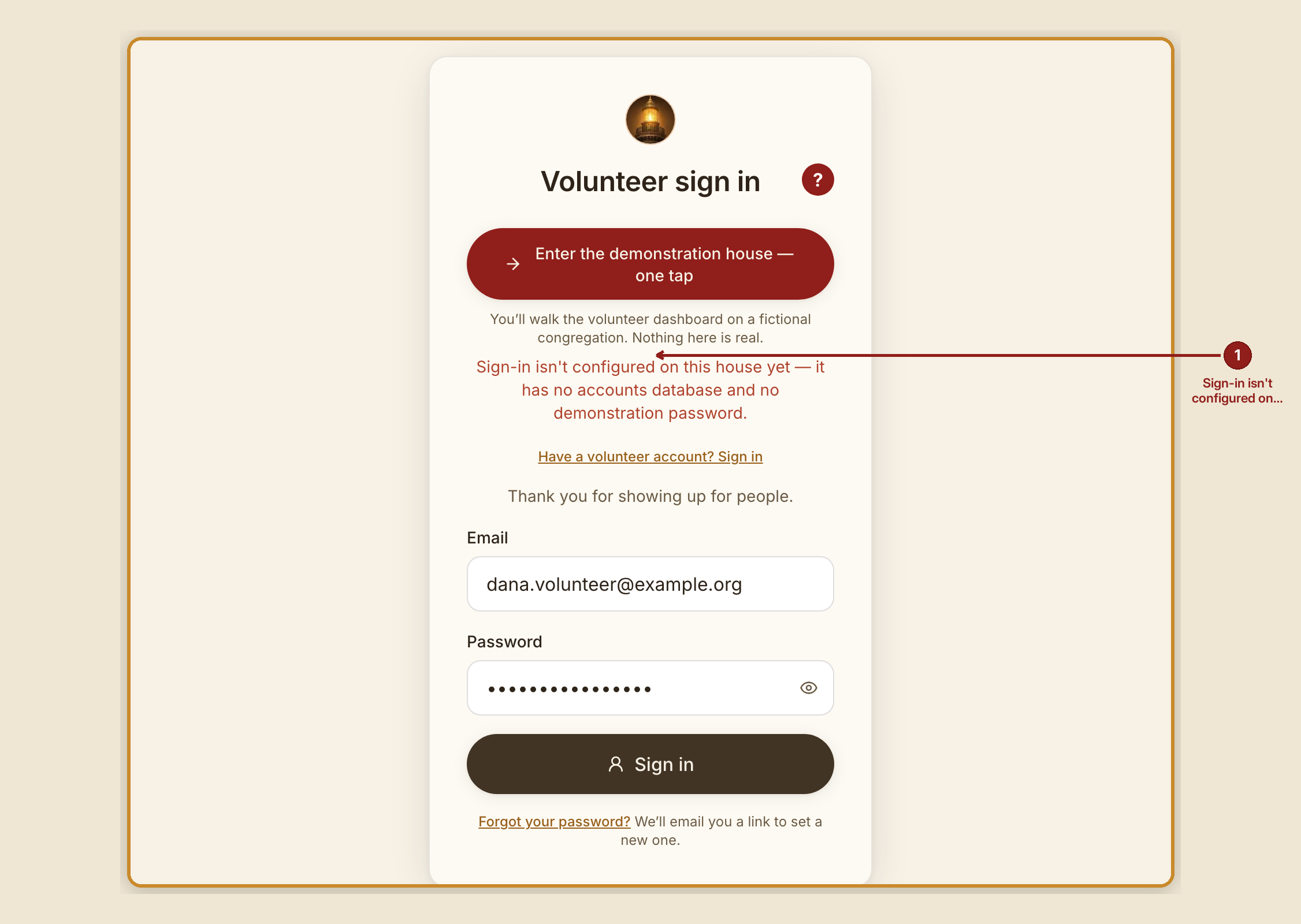
GraceBridge tells you plainly what happened rather than a generic error:
- Wrong email or password: "That email and password don't match — try again, or use Forgot your password?"
- Your account isn't set up on this house yet (a real sign-in that hasn't been added here): "That sign-in works, but this house hasn't been told about you yet. Ask Steven to add you."
- Your account has been turned off: "This account has been turned off. Ask Steven if that's a mistake."
- Your access has expired (this is how time-boxed roles, like a consultant's, are enforced): "Your access to GraceBridge has expired. Ask Steven to extend it."
- The house isn't configured for sign-in yet: "Sign-in isn't configured on this house yet." — this only happens on a brand-new or misconfigured deployment; if you see it on a house you use regularly, tell the founder immediately.
- Too many password-reset requests in a short time: "Too many reset requests just now — wait a few minutes and try again."
- A reset link that's already been used or has expired: "This reset link has expired or has already been used — ask for a new one."
Founder note. Only a wrong password (not a disabled or expired account) redirects a failed sign-in to the demo house — the product's own reasoning is that someone who typed the right password shouldn't be bounced anywhere.
Volunteer note. If you land on "Your account" and it tells you you're signed in with the team passcode rather than your own email and password, ask the founder for your own account. The passcode gets you into the dashboard, but your notes won't sign themselves with your name, and you can't change a passcode-only password from this page.