

Roles and permissions
What this screen is for
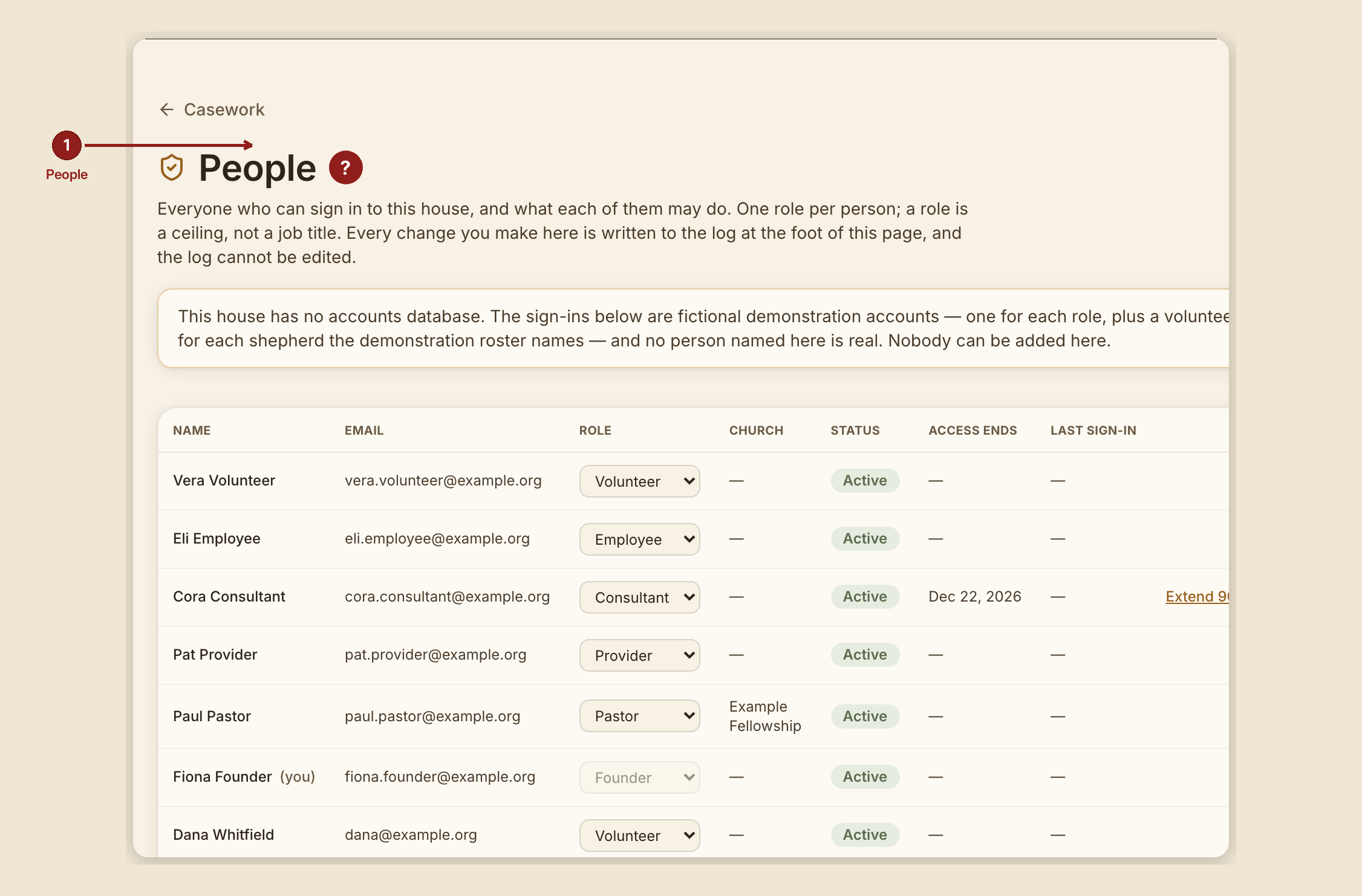
This page explains exactly what each sign-in role can and cannot do, read from the authorization code itself rather than guessed at. It covers the "People" admin page (/dashboard/admin, founder-only), where accounts and roles are actually managed.
A note on names first, since the product and everyday language don't always match: the six real sign-in roles are volunteer, employee, consultant, provider, pastor, and founder. "Caseworker" is everyday language for a volunteer or employee — it is not its own role in the code. There is no client sign-in role either: a person seeking help never signs into the dashboard at all. They use /gethelp, /intake, and /portal without an account, identified only by their case number and access code (or a mailed check-in link).
What you see, in the screen's own labels
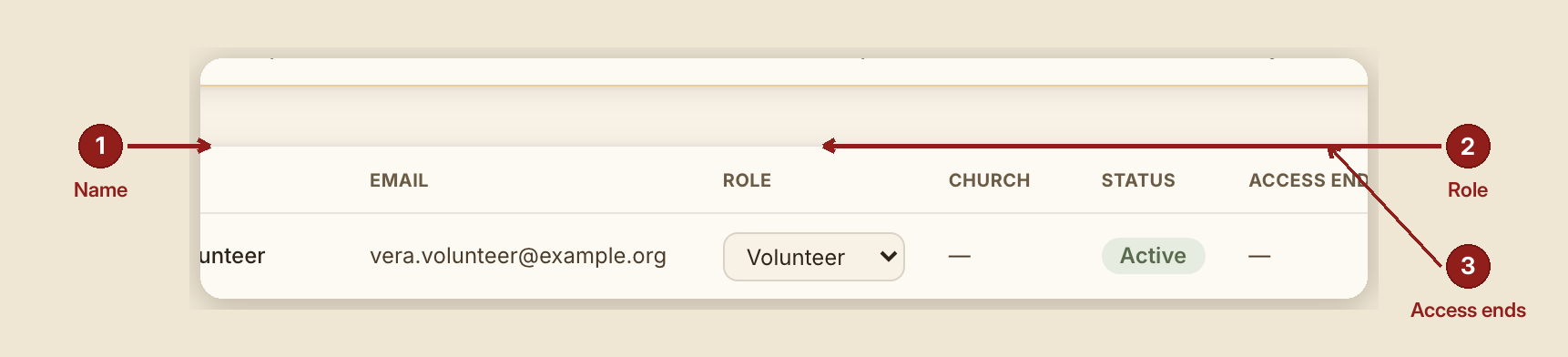
"People" heading: "Everyone who can sign in to this house, and what each of them may do. One role per person; a role is a ceiling, not a job title. Every change you make here is written to the log at the foot of this page, and the log cannot be edited."
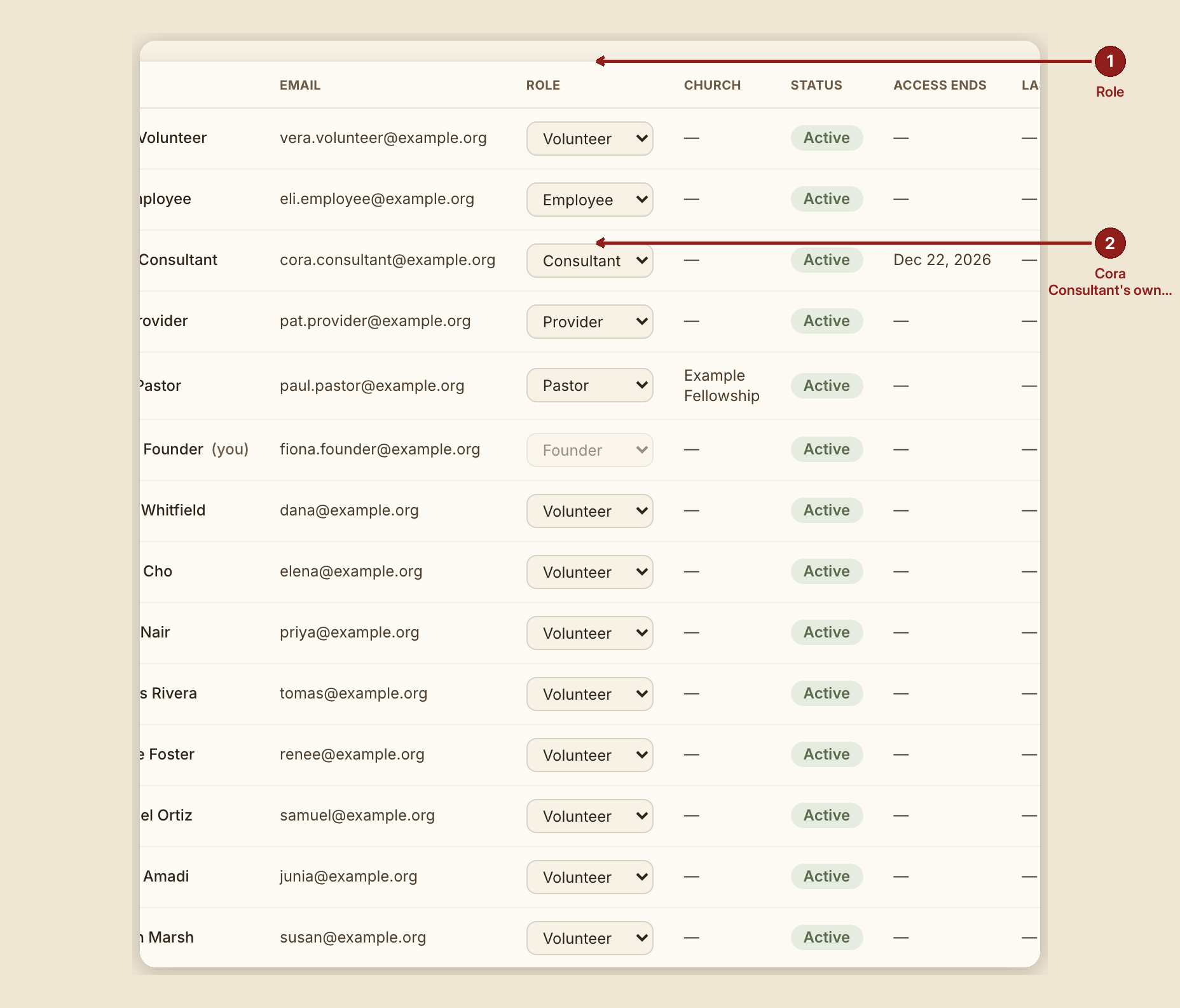
Table columns: Name · Email · Role · Church · Status · Access ends. Add-person fields: Name, Email, Role, Congregation, Provider.
An expiry-warning banner appears when accounts are about to lapse: "{n} people's access ends within 7 days: {names}. Extend them below, or do nothing and access ends on its own."
What each role can do — from the code, exactly
Every permission in GraceBridge is checked by one function that denies by default: nothing is allowed unless a role has an explicit, named grant for it.
- Founder — everything, without exception: every case, every report, exports, adding and changing people, and the admin log. Only the founder can open
/dashboard/adminor the bug-report inbox. - Employee (day-to-day staff — informally, "caseworker" with the whole house behind them) — every case in the house, every report, exports, and can assign a case to a volunteer. Cannot add or change people's accounts.
- Consultant — read-only across the whole house: can read cases, notes, and reports, but cannot write a note, change a case, upload a document, export, or assign anything. Access is time-boxed and expires on a set date — 90 days by default — enforced at every sign-in and page load.
- Provider — sees only the referrals sent to them: a case summary, its status, and only their own notes back on it (not another volunteer's notes on the same referral). No reports, no exports, no wider roster.
- Pastor — meant to see their congregation's own cases, notes, Client History Log, and exports. As of this build, the software has no concept of "which congregation a case belongs to" yet, so a pastor session honestly sees no cases at all — the dashboard says so plainly rather than erroring, and it is a decision waiting on the founder, not a bug.
- Volunteer (informally, "caseworker" serving on her own) — sees only the cases assigned to her, or ones she's already written a note on. Can read and write notes, upload documents, and manage check-in links on her own cases. Can read the Shoulder Tap and Client History Log, narrowed to her own roster. No exports — ever, by explicit design.
What to do
- Match a new person's role to what they actually need to touch, not to their title — a role here is a ceiling on access, not a job description.
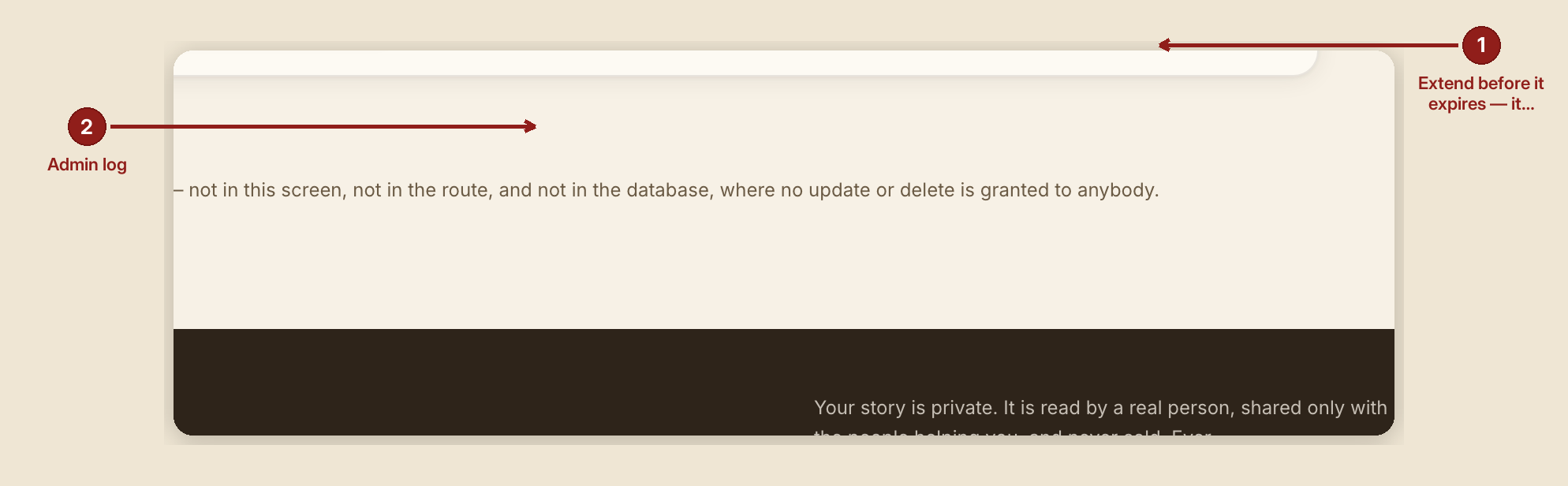
- Extend or renew a consultant's access deliberately before it expires, rather than assuming it renews itself — it doesn't.
- Read the admin log at the foot of the People page if you need to know who changed what and when — it can't be edited, so it's the reliable record.
What NOT to do
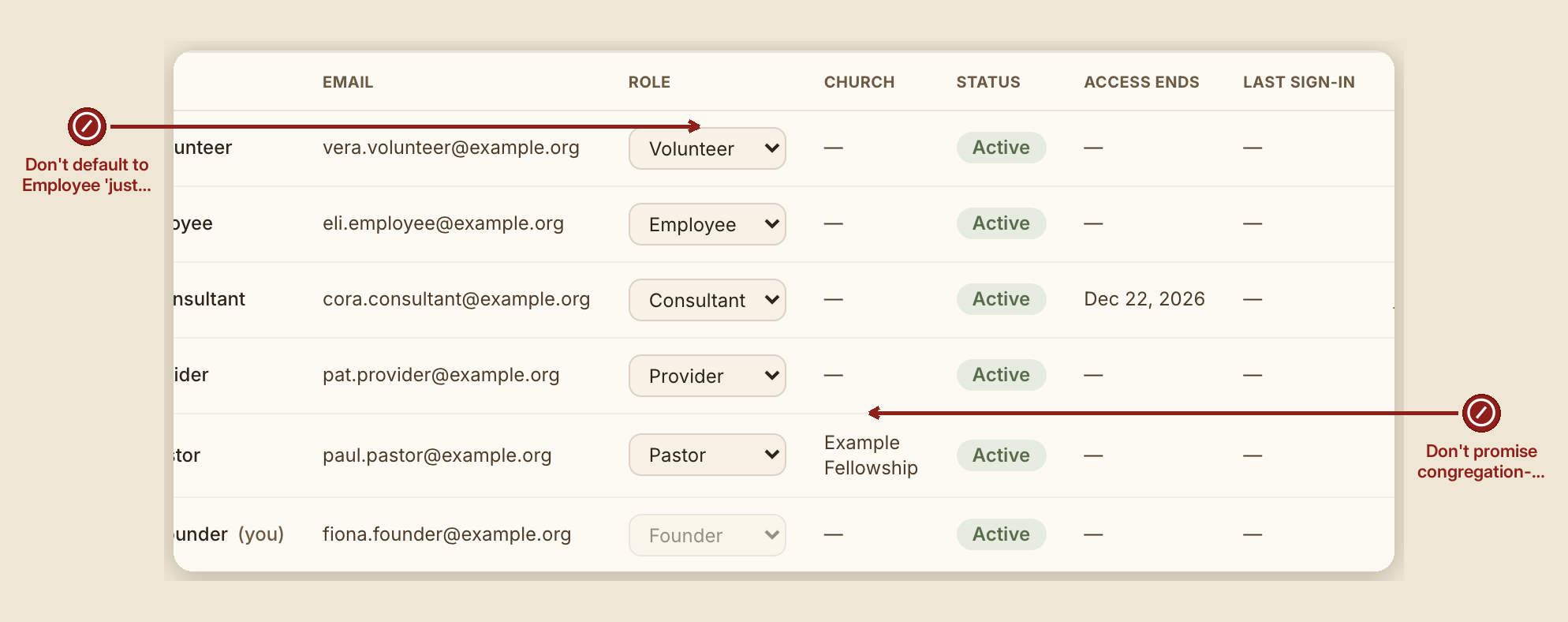
- Don't assign the `employee` role as a default "just in case." It grants exports and house-wide visibility — reserve it for people who actually need both.
- Don't expect a pastor role to show congregation-scoped cases today. That mapping doesn't exist in the software yet; don't promise it to a pastor until it does.
- Don't rely on revoking a consultant's access to take effect instantly everywhere. Expiry and disabling are checked at sign-in and on page load, not at the network edge, so it isn't truly instantaneous mid-session.
When something goes wrong
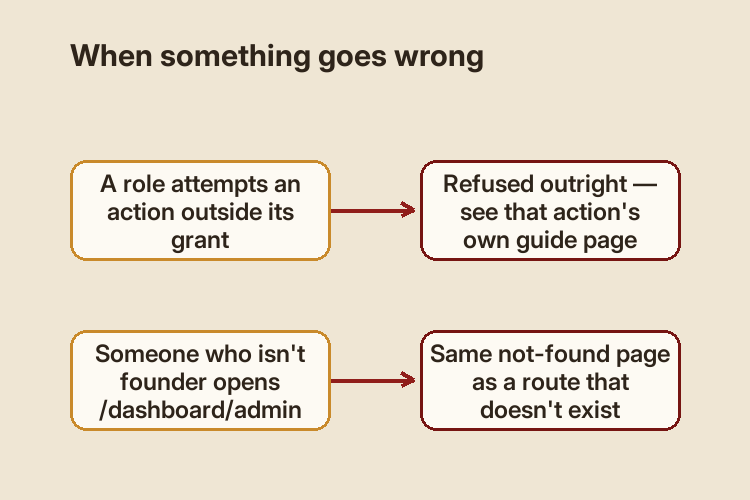
- A role tries an action it doesn't have: the action is refused outright — see the specific screen's own guide page for that action's exact refusal message (for example, Counseling & Recovery arm for the substance-use fence).
- Someone who isn't the founder tries to open `/dashboard/admin`: they get the same not-found page as a page that doesn't exist — deliberately, so the page's very existence isn't confirmed to someone who shouldn't see it.